
I'm having an issue similar to @li7in6 it seems.
I'm using multiple Eizo FS2434 (Capable of YCbCr 4:4:4) and the display connected via CAC-1170 can't use pixel format and thus don't use YCbCr. The display connected via HDMI can. If I set the monitor to YCbCr 4:4:4 the display gets greenish since it's receiving RGB.
My system specs:
- AMD R9 280 (drivers: 16.7.3)
- Windows 10 Pro 64bit
I've sent a mail to [email protected] half an hour ago or so, too. Maybe a new firmware actually helps.
Hopefully you can come up with a solution.
Thanks in advance
CAC-1070 and 1170 HDMI 2.0 adapter feedback topic.
DenisDA wrote:
What version of a firmware at the moment?
Got 7.26, but it didnt help.
@johncasey37 yeah, HDMI works, but sadly I have only 1 HDMI port on my graphics card ... Thus I would like to be able to change the output signal to be YCbCr 4:4:4 even with the adapter.
P.S.: I've tried the display settings to hard, it's annoying... The display supports YCbCr 4:4:4 and when connected directly via HDMI, AMD lets me use it.
Thranos wrote:
I'm having an issue similar to @li7in6 it seems.
I'm using multiple Eizo FS2434 (Capable of YCbCr 4:4:4) and the display connected via CAC-1170 can't use pixel format and thus don't use YCbCr. The display connected via HDMI can. If I set the monitor to YCbCr 4:4:4 the display gets greenish since it's receiving RGB.
My system specs:
- AMD R9 280 (drivers: 16.7.3)
- Windows 10 Pro 64bit
I've sent a mail to [email protected] half an hour ago or so, too. Maybe a new firmware actually helps.
Hopefully you can come up with a solution.
Thanks in advance
I answered this yesterday on my phone but then it asked me to log in and m entire response was lost.
To summarize:
From AMD support, the AMD drivers do not allow the use of the "Pixel Format" options under additional settings when a display is plugged in through a Displayport. Those options are only available with an HDMI connected display. I have confirmed this by plugging both a displayport and HDMI monitor into my GPU and the "Pixel Format" options become available, however you are only able to select options for the HDMI connected display.
This means for a DisplayPort connected monitor/TV there is no user-level ability to select RGB/YCbCr or 4:2:0/4:2:2/4:4:4 chroma sumbsampling settings at the display adapter. According to AMD support the display """"SHOULD"""" output the best resolution, bit depth, and chroma settings that it can on it's own.
As you and I have discovered this is not the case.
In my own testing I have discovered that the display detects a 4096x2160 input no matter what you have selected as the output resolution on windows control panel. The display is a 3840x2160 native resolution and when 3840x2160 is selected in control panel, the display outputs a correct aspect ratio 3840x2160 image with no overscan but still is detected as a 4096x2160 signal according to the display.
I have discovered a temporary work-around to get a true 3840x2160 4:4:4 chroma 8 bit per color image on my setup. This involves cycing the "HDMI UHD Color" setting off then back on again for my TV. The "HDMI UHD Color" setting is what enables the TV to output a full 4:4:4 4k@60hz image. Once "HDMI UHD Color" is turned back on the TV will be properly displaying a 4:4:4 chroma image and the display will correctly be detecting a 3840x2160 input unlike the 4096x2160 situation described in the paragraph above.
This is not a permanent solution however as any time the display is turned off, or the resolution is refreshed (like when starting a game or any other program that has resolution control). The TV/GPU will revert back to the detected 4096x2160 4:2:2 output until you go back and cycle "HDMI UHD Color" off then back on again. Especially inconvenient considering when cycling "HDMI UHD Color" off then back on the TV has to restart each time. This work around is not to be considered a permanent solution because of this.
This is my experience with a Samsung TV. Different models of TV my require a different work-around.
Hope this helps.
Thranos wrote:
Got 7.26, but it didnt help.@johncasey37 yeah, HDMI works, but sadly I have only 1 HDMI port on my graphics card ... Thus I would like to be able to change the output signal to be YCbCr 4:4:4 even with the adapter.P.S.: I've tried the display settings to hard, it's annoying... The display supports YCbCr 4:4:4 and when connected directly via HDMI, AMD lets me use it.
7.26 did not solve my issue either. It did however induce a intermittent flickering across the screen. Not a huge deal, but distracting. I reverted back to 7.23 firmware to correct this issue.
li7in6 wrote:
7.26 did not solve my issue either. It did however induce a intermittent flickering across the screen. Not a huge deal, but distracting. I reverted back to 7.23 firmware to correct this issue.
At least I'm not having this issue ... Yeah I've read about your workaround. Doesn't work for me. MonInfo shows the capability to use YCbCr on all three monitors. This said, there should be some way to use it on DP, too. To make things even worse, you can see on https://pcmonitors.info/articles/correcting-hdmi-colour-on-nvidia-and-amd-gpus/ that AMDs output signal differs for YCbCr vs RGB. It differs on nvidia cards too, but its not as bad as using AMD ...
Thranos wrote:
At least I'm not having this issue ... Yeah I've read about your workaround. Doesn't work for me. MonInfo shows the capability to use YCbCr on all three monitors. This said, there should be some way to use it on DP, too. To make things even worse, you can see on https://pcmonitors.info/articles/correcting-hdmi-colour-on-nvidia-and-amd-gpus/ that AMDs output signal differs for YCbCr vs RGB. It differs on nvidia cards too, but its not as bad as using AMD ...
I have found a solution for this issue:
- Open Custom Resolution utility
- Select the display in question.
- In the "Detailed Resolutions" box delete all resolutions other than 3840x2160@60hz and 1920x1080@60hz
- Select the 3840x2160@60hz option and click "Edit" under "Detailed Resolutions"
- In the new dialog select "Timing > Automatic LCD Native"
- Ensure that the correct 3840x2160 resolution is input under "Active"
- Under refresh rate change to 59hz (~584 pixel clock)
- Click "OK" then click "OK" again to exit the utility
- Select the "restart.exe" or "restart64.exe" executable according to your OS
- After the restart is done and you correct all your scaling and resolution settings back to the way you want them the display should be at a 3840x2160@60hz (59hz actual) and it should be displaying at 4:4:4 chroma subsampling.
- Doing this also allows the resolution to be reverted back to by default so you do not lose 4:4:4 chroma when the TV is switched off or when resolution is refreshed by a program.
Let me know if this helps.
Thranos wrote:
At least I'm not having this issue ... Yeah I've read about your workaround. Doesn't work for me. MonInfo shows the capability to use YCbCr on all three monitors. This said, there should be some way to use it on DP, too. To make things even worse, you can see on https://pcmonitors.info/articles/correcting-hdmi-colour-on-nvidia-and-amd-gpus/ that AMDs output signal differs for YCbCr vs RGB. It differs on nvidia cards too, but its not as bad as using AMD ...
Also thank you Thranos. You gave me the idea.
I had used Custom Resolution Utility to overclock my Samsung monitors to 75hz and seeing it in your link gave my the idea to slightly underclock the TV to get the desired results. It worked, now I hope this, or something similar, works for you.
Hello..
This is a known issue judging by the Amazon reviews, and easy to solve but i still need to ask for help:
I have a CAC-1070 adapter. I also have a Samsung 4K TV.
However when using the adapter the TV goes dark every few seconds (like it turns the screen off momentarily). And i can't choose rgb color on my radeon panel, the pixel format option not appear in. if ou can help me thanks a lot
I am using the CAC-1170 with 2015 Macbook Air and Samsung 4k 40KU6300 TV with a high quality HDMI 2.0 compliant cable. I have no flickering and the picture is amazing.
I only have 2 issues. First, if the display output is turned off by the Mac or goes to sleep the adapter will not wakeup and no image is transmitted to the TV. I must unplug and replug the mini display port connector to trigger the output to send to the TV.
Second, the TV will not retain PC mode setting on the HDMI input. I assume this is a TV thing but whenever the connection turns off or disabled, the TV switches out of PC mode. PC mode is required for 4:4:4.
I checked all the cables. This effect is observed only when connected via cac1070. Even at a frequency of 30 hertz. TV is divided barely noticeable strip and one of the other little lighter.
Just sometimes the screen becomes covered in thin green stripes. If you connect a 4K @ 30hz hdmi-hdmi, the picture is normal.
sorry i missed your message before :-S
i will send you an email from [email protected] with firmware update.
I've been trying to output 1440p at 60hz from crossfired 7950 cards to a Vizo p602ui-b3 4K TV using the Club3D DisplayPort to HDMI 2.0 adapter. I can set the desktop resolution to 1440 at 30hz without an issue. When I then change the monitor refresh rate to 60hz, the scaling mode in Crimson is automatically set to "center" and black borders appear on all four sides. I can change the scaling mode back to "full panel" and the black borders disappear, and the 60hz refresh rate is retained. However when I launch a game (AC Black Flag in this instance), the black borders reappear when I change the in-game resolution to 1440/60hz. I can see the scaling mode is still set to "full panel" when minimizing the game.
I'm unable to add a 1440/60z custom resolution under "additional settings", and enabling/disabling "GPU scaling" seems to make no difference. I also tried modifying the game profile to set display scaling to full panel under "Profile Options", but no luck. Is there any trick I could try to get 1440/60 to work in games without the borders (rather than only the desktop), or is this more likely just a limitation of the TV?
Hi Usernamegoeshere,
Most 4K screens do not genereate a very good picture in 1440p, most likley it will even look better in 1080p. However please do check with Vizio if such resolutions are actually supported.
Please use HDMI port 5 on the TV.
TV's often work best by making a custom resolution in your case 2560x 1440 p with Timing Standard set to CVT-Reduced Blanking.
Please turn off GPU Scaling.
When I connect my TV directly to the HDMI output on my nVidia GTX 1080, I have an option for 12bpc (which works properly) when I set my refresh rate to 24Hz (RGB).
However, when I connect my TV to the same video card using this adapter, I only see an 8bpc option. I *am* able to get 4K/60Hz/RGB, so presumably it is not a cable issue.
I'm curious what configurations this adapter has been tested under that will give higher than 8-bit output? There's certainly a possibility that this is an issue on nVidia's side (it sees the adapter as an HDMI connection, even though it's going into a DisplayPort output), but wanted to find out more about what configurations it's been tested with.
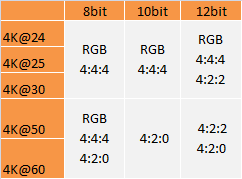
By SmartHub, I'm assuming you mean the OneConnect box (SEK-3500). No, the box completely replaces all electronics on the TV (other than the panel), so all original inputs on the TV are no longer active.
No other devices I've used seem to have any problem determining the capabilities of the TV, and I've grabbed the EDID via the HDMI output myself and looked at it, and don't see any obvious problems. EDID shows that the set accepts 30-bit and 36-bit signals.
Have you tested your adapter with nVidia + a Samsung J-series TV?
Unfortunately not have been able to test it with SEK-3500.
I am suspecting the Pixel Clock being too high. Some TV's can do native Pixel Clock of around 594 MHz, however DP1.2 only allows up to 540Mhz. With "normal" graphics drivers you can often not do such setting but with program like CustomResolutonUltility (CRU) you can. Jus tmak e a cusotm resolution for 380x 2160 at 60Hz prograssive with Timing Standard at CVT-RB (Reduced Blanking) and pixel clock set to 539MHz.
http://www.monitortests.com/forum/thread-custom-resolution-utility-cru
I don't think you fully understand the problem. I'm not having a problem getting 2160p at 60 Hz. My problem is getting a bit depth higher than 8-bit (i.e. 10-bit or 12-bit). As far as I know, CRU doesn't let me pick a bit depth, unless it's been added recently.
Can you confirm that I can set 2160p @ 24Hz with 10-bit or higher using CRU? If so, I'll try it.
I'm a little skeptical, though, because I would assume 2160p @ 60Hz at 8-bit would use a higher pixel clock than 2160p @ 24Hz at 10-bit.
Hi mjnichol,
You are right CRU does not have Color Depth setting, but it does "overwrite" the Nvidia driver settings, which does help in some cases.
If you choose 4k at 30Hz (or lower) you should be able to run 4:4:4 in 12Bits BPC.
Normally Graphics driver will blank out the option to change the 8 Bit BPC but when the frequency is lowered it should activate again so it can be changed ...
Did you check with Nvidia on this already ?
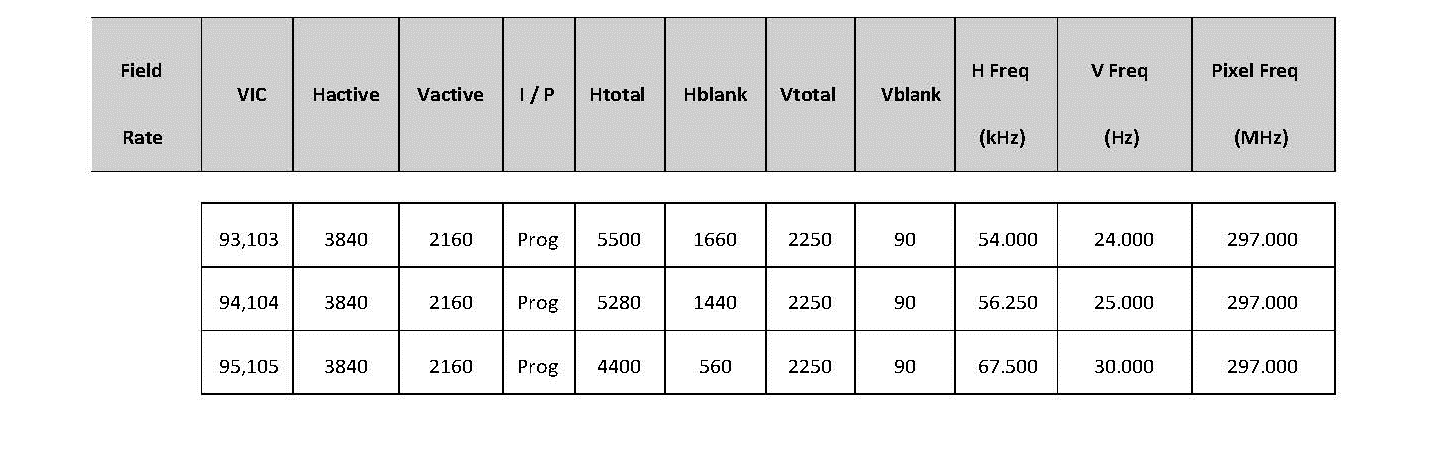
I got some feedback from R&D and they state that the Adapter needs to be connected to the TV/Monitor directly. Placing another HUB/Converter in between will most probably disrupt the signal.
Sorry i do not have a better message for you but it will most probably not work with your setup :-(
Sorry for the inconvenience.
It is connected to the TV directly. The SEK-3500U is not a hub or converter. It's connected to the panel using a special Samsung OneConnect cable (not HDMI, etc.). So, as far as external devices are concerned, they are talking directly to an HDMI port on the TV.
Many new Samsung TVs have no HDMI ports on the TV itself and use this type of box to separate the inputs from the TV panel.
it is not a resolution issue, but an incompatibility issue with the SEK-3500, somehow the Adapter and the SEK-3500 ahve a problem with each other ... Having said that many converted signals have a problem when connected to another converter/hub type of device like SEK-3500.The issue is escalated to R&D and Factory and i hope they will find a solution for it .. Will keep you posted as soon as i get feedback.
Sorry if i did not expres myself properly, certainly not my intesion. We are talking about this SEK-3500 One Connect Evolution Kit right (as Samsung calls it) ? 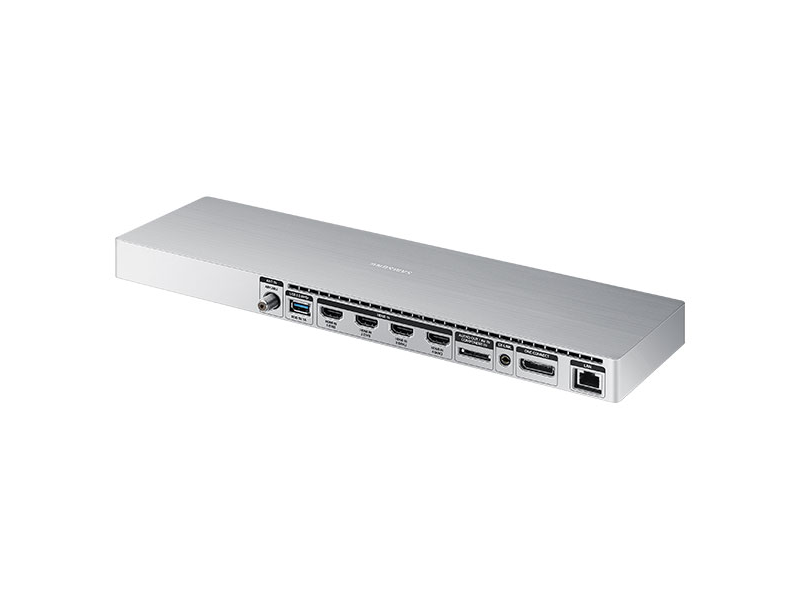
We have had more reports from users about this not working in this combination PC>Adpater>SEK3500>TV
Settings you are talking about also depend on what the screen can handle, what the Graphics can output, if the Graphics driver allows you to do neccesary settings, the manner in which the TV offers th EDID info to the system etc. many things the adpater has very little to no influence on. This does of course not mean we do not take such issue seriously, we most certainly do. We have send samples of our CAC-1070 and CAC1170 to Samsung so they can test in order to help us detemine where the problem comes from and so help us solve this issue. No solution so far, but working on it ...
Will keep you informed as soon as we have feedback on the topic
Like you mjnichol i also bought this in the hopes hdr would work as advertised im using a 1070 contacted nvidia asking if this was somehow a displayport problem/limitation and there are no limitations for that. the official reply i had from club3d is that hdr doesnt work at all and they hope it may work in 3 months.
4k@60hz is no problem hdr just doesnt work the product page is just very misleading
this does not feel like a finished polished product but at best a beta phase.
I'm unable to get 4k @ 60hz. Only 4k @ 30hz. When I change the monitor refresh rate on the TV through the windows advanced display adapter settings the TV goes black. When I try and run a custom resolution through Crimson or through CRU, the screen goes black. All HDMI ports on the ks8500 are certified for HDMI 2.0. All ports have UHD color option enabled. CEC is disabled on the TV. TV is in PC/ game mode. 1080p @ 60hz works fine. I've toggled the color options to 8 bit. I've tried launching applications + games with compatibility legacy color mode with no success. Also when I'm running some combinations of the above settings the screen will keep popping in and out switching from 1 to 2 displays. This is currently the second display in my setup along with a 4k 40" monitor @60hz. Display settings is set to 'Clone display'. Switching from primary to secondary doesn't change anything.
Current setup:
- 2 Radeon R9 Fury X's
- Club3d 1170 adapter
- 35ft Monoprice Luxe CL3 Active high speed hdmi cable 18Gbps
- Samsung KS8500 4k tv (65")
- Windows 10
- AMD Crimson 16.8.3 drivers
Hi LittleStereo,
Could be a number of things ...
It normally work best to have the Screen via the Adapter as secondary screen.
Please disable CrossFire.
I dont have feedback on the 10 meter cable, it looks fine spec-wise.
Some TV’s can do native Pixel Clock of around 594 MHz, however DP1.2 only allows up to 540Mhz. With “normal” graphics drivers you can often not do such setting but with program like CustomResolutonUltility (CRU) you can. Jus tmak e a cusotm resolution for 380x 2160 at 60Hz prograssive with Timing Standard at CVT-RB (Reduced Blanking) and pixel clock set to 539MHz.
http://www.monitortests.com/forum/thread-custom-resolution-utility-cru
With CAC-1070, I also have trouble getting it to show the BIOS text mode screen for my Intel
NUC5i5MYHE. I can get into the BIOS screen by blindly pressing F2, but it works because the BIOS setup is a little bit modern with a little graphical user interface (not text mode). It's impossible for me to see anything when I press Ctrl-P to enter MBEX setup.
Actually, I have problems seeing text mode BIOS whenever I use the CAC-1070 connectors. I'll have to wait until it boot to Windows before I can see anything. Any chance you can fix up the text mode problem?
I was eager to buy another adapter, but now I am having second thoughts.
I'm having trouble getting 60 Hz to work with LG 75UH5C signage screen. It's supposed to support 4k 60 Hz but switching to 60 Hz from 30 Hz just causes a "no signal" message. I was only able to see scanning interference patterns occasionally while playing around with settings.
Here's the setup:
Mac Pro (2009)
OS X 10.11 El Capitan
Nvidia GTX 960 with latest drivers
Club 3D CAC-1070 (firmware 7.26)
Hama 18 Gbps HDMI 2.0 Cable (model 00122124)
SwitchResX
The screen doesn't have much settings, just basic color settings and something called "HDMI Ultra HD Deep Colour" that didn't make a difference. I also tried different settings in SwitchResX but those didn't have any effect.
Any ideas?
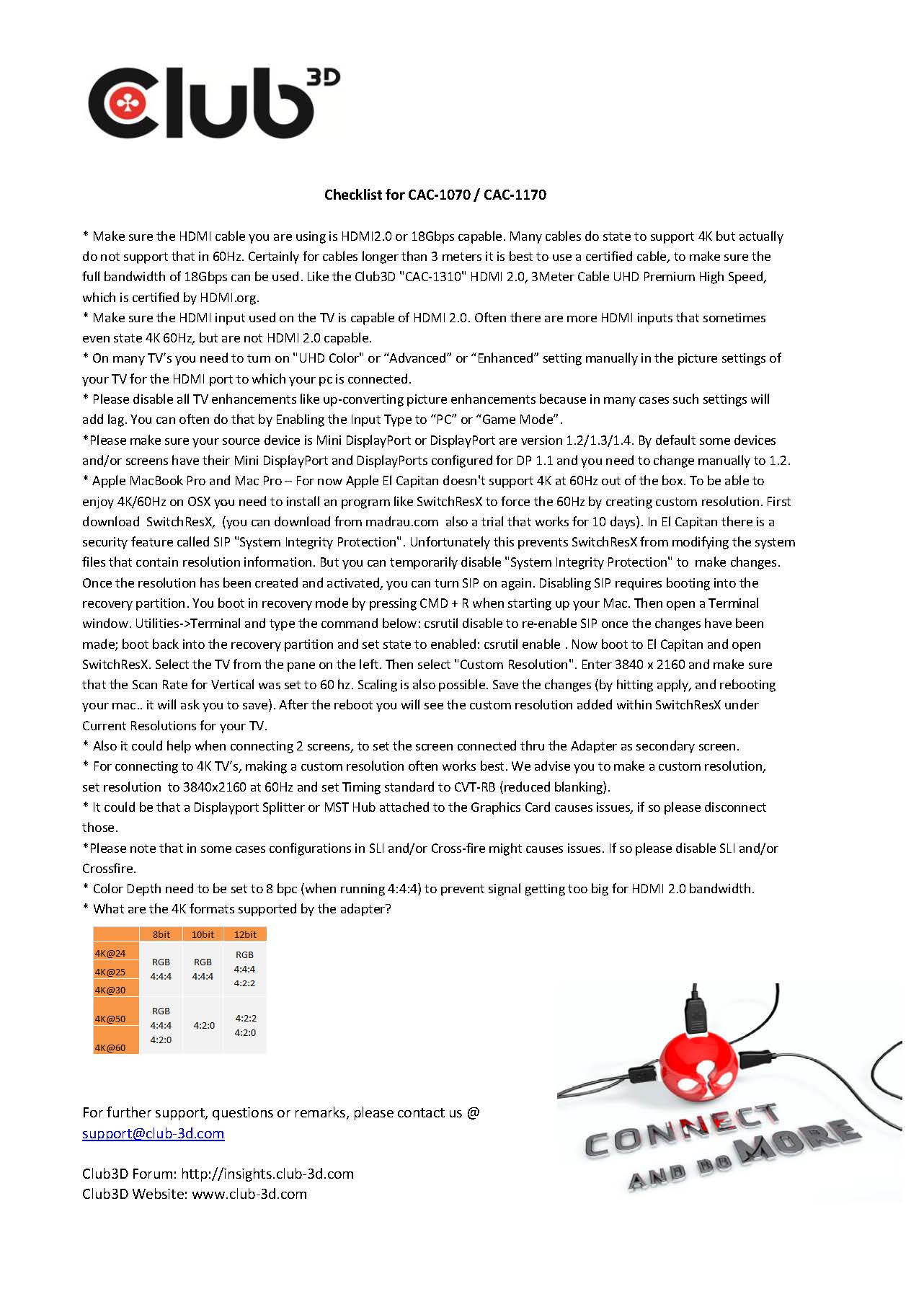
Hi,
I tried with that setting on and by creating a bunch of different custom profiles with SwitchResX but none of them worked. I only got flickering occasionally but other than that the screen didn't recognize the signal.
I tried with CVT, CVT-RB, CVT-RB v2 and whatever other settings SwitchResX has. I also tried with both 60 Hz and 50 Hz but no difference.
Anything other I could try? Could this be a compatibility issue with the screen and CAC-1070?
I am sorry but we have no experience with that particular Screen, so cannot really help with that. It could be that the system/adapter is not able to read the EDID info coming from the screen (although that is not really a problem with any other LG Screen i know of). But than again that custom resolution you make will just "force" that signal to the screen so if the screen can handle it, it should give a picture. With TV's the CVT-RB is important, for Monitors not necessary, can just be at "Auto" or somthing like that.
HDMI2.0 directly from the card to the Screen does work ?
When using this adapter if I look closely at the screen you can see the image is moving quickly, looks like it is vibrating or something like that. And on certain colors (grays a lot you can see small rectangles in the image. They are just slightly off colored. I also had the image not appear after a reboot and would need to disconnect the adapter and plug it back in. When I would do that sometimes the image would come back up in 4k, other times it was something like 800x600. When I use just the HDMI cord I don't have any of those issues. I am using the same HDMI cord and the same HDMI port on my TV.
The GTX780's HDMI 1.4 port doesn't do 4k @ 60 hz so this is why I got the adapter. I could notice mouse movements were significantly smoother with the adapter it so I would like to get it working. Any advise is appreciated. I no longer game on the GTX780 so if there are other drivers that would support this better I can try it. Thank you.
I tried to submit my request through the form but it just kept erroring out so here it is.
Hi compalalaska,
That is odd, we did receive your message and is answer from [email protected]
* Please make sure the TV is updated to latest software/firmware.
* When connecting a HDMI 2.0 device, HDMI Color Subsampling needs to be enabled to support 4K resolution at 60hz.
To enable/disable HDMI Color Subsampling:
- From the Inputs menu, tap HDMI Color Subsampling. The HDMI Color Subsampling menu is displayed.
- Find HDMI input that your HDMI 2.0 device is connected to and swipe the switch right to enable and left to disable HDMI Color Subsampling.
* Please make sure you HDMI Cable is capable of 4K at 60Hz or 18Gbps.
With setups like yours is normally works best to make a custom resolution for 3840x2160p at 60H with Timing Standard set to CVT-Reduced Blanking (RB).
The interesting thing is that win10 had auto updated the 520 driver while I was on 7.23 and did it again AFTER I updated to 7.26 and manually installed older graphics drivers. Net result was no flickering though, so I'm happy. No other problems either, the CAC-1170 gives me 4k/60hz on a 50 inch Panasonic TV, from the Skylake NUC, which has only 4k/30hz over hdmi, but 4k/60hz on the mini-dp.
I purchased the CAC-1070, and am using it with the 13 inch, 2015 Macbook Pro. I got 4K 60Hz fairly easily, but I'm getting 4:2:2 chroma with 8 bit color. The TV I am using is fully capable of 4K 60Hz 4:4:4 (it's the Samsung KU6300). PC mode is on, UHD Color mode is on and I'm using a High Speed HDMI cable. I also forced my Macbook Pro to recognize the TV as a monitor, meaning it should be sending a full RGB signal, rather than a YPbPr one. What I concluded was that my GPU was not capable of 4:4:4. But I realized that that conclusions was false. The 4K 21.5 inch iMac has a worse GPU than my laptop, and yet it must be capable of 4:4:4, as it uses an internal monitor. So I have no clue what to do. I've done pretty much everything possible. Displayport 1.2 is fully capable of 4K 60 Hz 4:4:4 with 8 bit color, and yet I can't do it.
What often works best for setups with TV's is to make a custom resolution for 3840x2160p at 60 Hz with Timing Standard set to CVT-Reduced Blanking (RB).
For MAC OSx you will need a program like SwitchResX to be able to do that setting for the Timing Standard.
Please make sure your HDMI cable is capable of doing 4K at 60 Hz. You said you have a “High Speed” cable, but that only garantees 3840x2160 at 30Hz … the “premium high speed”
Versions should be made for 3840x2160 at 60Hz. Don’t get me wrong here, I am not saying your cable is not good or that is not able to do it, but please check and make sure.
A Premium High Speed Cable no longer then 3 meters / 10 ft is preferred. Does not have to cost all that much, in the US you can already buy our Certified cable for about 17 USD.
When running in 3840x2160p at 60Hz at 4:4:4 you will need to set the BPC to 8Bit (if that is not done by the Graphics Software automatically).
Please note I am talking BPC not BPP.
Hello
Sorry for my English,
i have a new mac mini fusion and the CAC1170, but when i try to use on my TV 4K after use madrau.com, it does not work, or the screen is green, or tremble very much.
do you think is because i use the hdmi video for control on the same tv ?
i mean that i use a second entry hdmi for control what i do.
But when i use the 1170 with my MacBook pro is work very well in 4k 60 hertz.
thank you for your answer.
Philippe
Hi Cabouret,
Well if it all works well on the MacBook Pro at least we know all the parts are working.
With regards to the Mini MAC, you amde a custom resolution for 3840x2160p at 60Hz with Timing standard set to CVT-Redeced Blanking (RB), saved it and then after rebooting system selected it with TV connected and on?
Hello,
I wanted to give some input. First my specs:
- Windows 10 on latest update (Version 1607 to date)
- Crimson ReLive Edition 16.12.2
- AMD R9 Fury X
- Club3D CAC-1070 Adapter
- AmazonBasics HDMI 2.0 cable @3 meters
- TV Grundig 55 FLX 9491 (Has full HDMI 2.0 support)
- Denon AVR-X1300W (Also has full HDMI 2.0 support)
Note: AVR is always between PC and TV.
So, first when I got the adapter, I was on Crimson ReLive Edition 16.12.1 and when I plugged it into my tv, the 3840x2160 resolution didn't show up at all. I played around with several settings but nothing helped. Then after retesting another day it suddenly worked, at least the resolution got detected correctly, but increasing it higher than 1920x1080 would cause the TV to lose the input signal. So I wiped the driver with DDU and installed the latest version Crimson ReLive Edition 16.12.2.
After plugging my PC into my TV again I got the full resolution options and when I selected them, the screen switched correctly. But In windows settings, 30hz is the highest choosable option. So I added a custom resolution with 60hz through Radeon Settings using the guide that came with the adapter (Using CVT-RB etc.). But now when I choose that 60hz version, the TV looses signal again and I have to wait until it reverts to 30hz. I switched the color depth from 10bit to 8bit, which didn't help. Black Screen is all I can get with 60hz.
tl;dr: 3840x2160@30hz works with latest AMD drivers on Win10, but I can't get to 60hz.
Any Ideas what else I could try?
Hello AlKappacinno,
It indeed often works best for setups with TV's is to make a custom resolution for 3840x2160p at 60 Hz with Timing Standard set to CVT-Reduced Blanking (RB).
Most TV’s need to have “UHD Color” manually set to enable and/or "PC-Mode" or "Game-Mode" set to enbaled.
With regards to AMD DrIvers:
I think Driver version 16.8.3 is overall working best. I know AMD made many small driver updates after that, however all aimed at RX400 series and non that I know of for R7/9 200 or 300 Series. I do hear end-users with R7/9 200/300 series Cards reporting that 16.12.1 also works quite decent for them. Did not test that myself yet. Please uninstall the current Graphics driver and all related Graphics software like Afterburner/GPU-Z or whatever graphics related software you might have installed.
Best way to remove Driver Software is to boot Windows in Safe mode, so the registry can also be cleaned. When you system does not allow you to do that, you can also use a program like DDU to remove such software: http://www.wagnardmobile.com/DDU/
Reboot and manually download and install 16.8.3 graphics driver (don’t let auto installer from Windows do that) You can find that here: http://support.amd.com/en-us/download/desktop/previous/detail?os=Windows%2010%20-%2064&rev=16.8.3
Please do try first without receiver in between first, just to make sure it works.
Hello, I'm Rerry and I'm new here
I have a 55X900A with a i7 4930K 16GB DDR3 and a FURY X config...
if miss a new config please tell me,...
So... this TV is a amazing 4k but the hdmi is only 4:2:0 at 4k 60hz...
and in the new driver crimsom 17.1.1 ins't possible to make 4:2:0
and using this CAC 1070 the fury thinks that is a DP, and pixel format is not avaliable too...
So what must i do?
the older driver has the 4:2:0 option?
Good day rerry182,
For setups with TV’s it normally works best by making a custom resolution for 3840x2160 at 60 Hz with Timing Standard set to CVT-Reduced Blanking (RB) for TV’s (for Monitors that can remain on “auto”).
Make sure the input on the TV is HDMI 2.0 (or capable of 4K 60Hz), often not all HDMI inputs are …
Make sure to use a HDMI cable capable of 4k at 60Hz preferably a certified one and not longer than 3 meter (max 5 meter)
Sometimes it does help to make a clean driver install. When using upgrade-feature to update drivers, often “older” files remain in the registry of the system and those can be “in the way”. UHD Audio driver is also included in this driver pack.
With regards to drivers for AMD.
I think Driver version 16.8.3 is overall working best for R9 Fury X. I know AMD made many driver updates after that, however all aimed at RX400 series and non that I know of for Fury X. I do hear from end-users that 16.12.2 also works quite decent for them. Did not test that myself yet.
Please uninstall the current Graphics driver and all related Graphics software like Afterburner/GPU-Z or whatever graphics related software you might have installed.
Best way to remove Driver Software is to boot Windows in Safe mode, so the registry can also be cleaned. Especially by using auto-update feature for updating drivers old files remain on the system (in the registry) which can be “in the way”. When you system does not allow you to do that, you can also use a program like DDU to remove such software: http://www.wagnardmobile.com/DDU/
Reboot and manually download and install 16.8.3 graphics driver (don’t let auto installer from Windows do that) You can find here: http://support.amd.com/en-us/download/desktop/previous/detail?os=Windows%2010%20-%2064&rev=16.8.3
or
Reboot and manually download and install 16.12.2 graphics driver (don’t let auto installer from Windows do that) You can find here: http://support.amd.com/en-us/download/desktop?os=Windows%2010%20-%2064
Firmware update is send by [email protected] to your email account
Sorry for the double post but I posted the previous one on the last position...
My setup is the following:
Graphics Card: Nvidia Quadro M5000 and/or Nvidia TITANX
HDMI cables: 2.0 certified
TV: Samsung JS9500
No matter what I do I cannot get color bitdepth more than 8 pixels using any of the two cards. When I connect the TITANX to the TV using the HDMI port though, it gets automatically to 12bpx… Any help?
Hi Stelios,
When in resolution 3840x2160 at 60Hz in 4:4:4 the BPC needs to be set at 8Bit.
(Note: BPC is not the same as BPP that will probably still give you 32bit)
Setups with TV's normally work best by using a custom resolution for 3840x2160 at 60 Hz with Timing Standard set to CVT-RB (Reduced Blanking).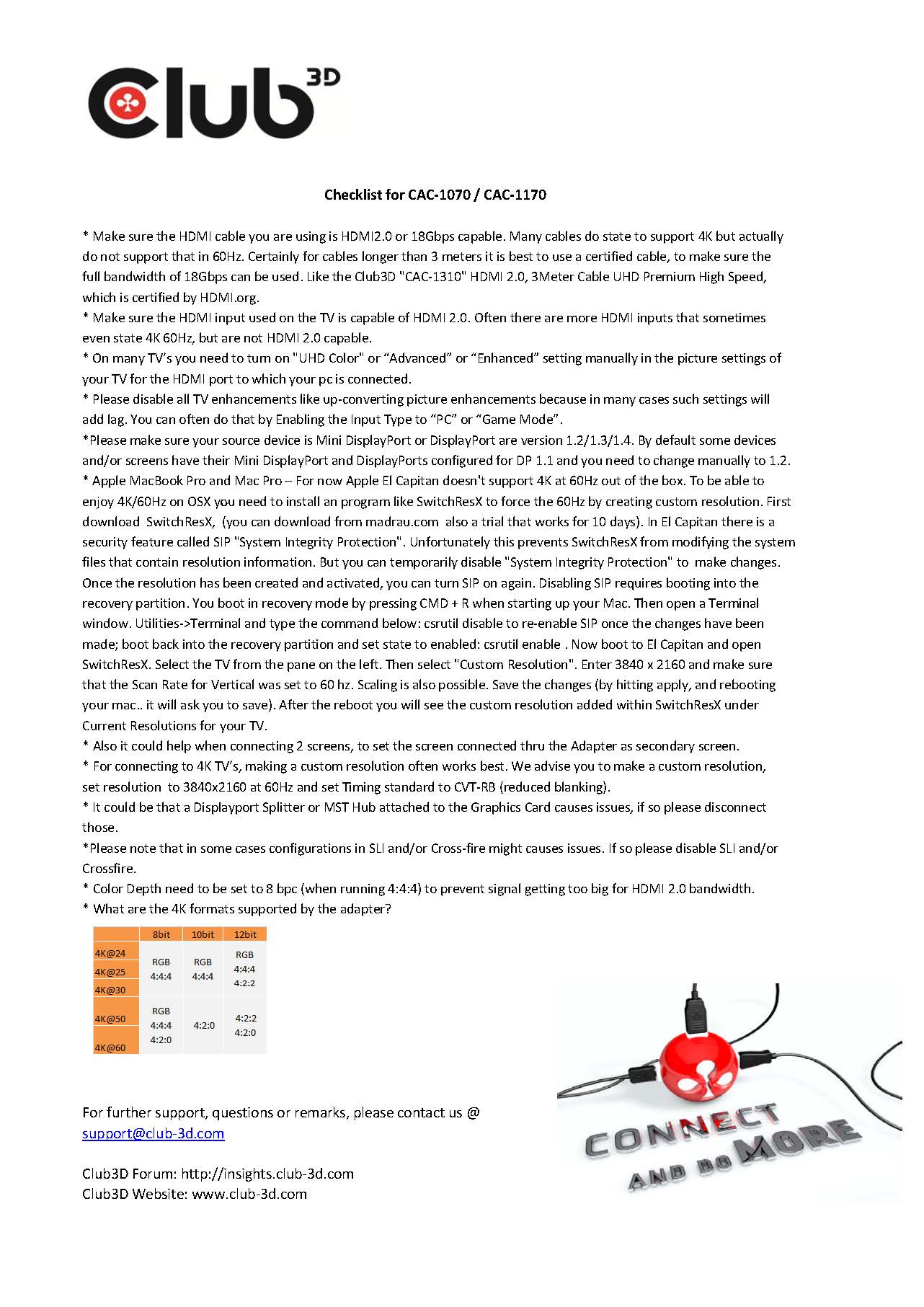
Hi MST1407,
To be honest, I do not really care about the 4K resolution. I mostly care about the 10bpp. So even if I set the resolution to 1080p and the freq to 30Hz I do not get bitdepth more than 8bits. According to the HDMI standards this is possible even using the HDMI 1.4, not even the HDMI 2.0... The bpc thing was a typo.
Long story short bought this and am unhappy this is advertised as HDR capable and support nicely says that part of the product doesnt work and they dont advertise it does (yet it shows on the site both 10 and 12bpc) other questions are evaded aswell like how to update firmware?
where to get the firmware or how to check what is on there currently? does it add input lag?
nothing this is all avoided for reasons i guess. So what wasnt advertised or i missed it is this is basically paying for being in a beta phase i expected a fully working product guess my hopes might of been too high for 2017.
Graphics Card: Sapphire Fury Tri-X
TV: LG 49UH8500
This adapter works straight out from the box 4K@60Hz, using latest driver 17.1.2 on Windows 10. Deep color is enabled on the TV and it's in Standard Picture mode. Custom timing doesn't really matter as I can't see any difference. As mentioned by many others before 10/12bpc is not possible at 4K@60Hz, only 8bit and AMD driver does not let me to choose pixel format on displayport. If I want to choose 12bpc the resolution must be lowered.
Hi All,
A Displayport 1.2 output has 21.6 Gbps of Bandwidth and an HDMI 2.0 has 18Gbps of bandwidth. So with the CAC-1070 / CAC-1170 the signal needs to be no bigger then 18Gbps.
3840x2160 at 60 Hz in 4:4:4 8 Bits BPC = 17.82 Gbps
3840x2160 at 60 Hz in 4:4:4 10 Bits BPC = 22.28 Gbps, Will not fit !
3840x2160 at 60 Hz in 4:4:4 12 Bits BPC = 26.73 Gbps, Will not fit !
If your screen is telling the system it can do 3840x2160 in 4:4:4 the AMD driver will most probably automatically switch to 8Bits BPC. It is indeed not prctical that you cannot chose to switch to 4:2:2 or 4:2:0 so you can up the BPC but i cannot help you with changing the AMD Driver :-S
You will probably need a separte program to be able to do that ..
I have the CAC 1073 adapter connecting my R9 Fury Nitro to my Samsung JS8500 4k TV. I'm using UHD color and achieving 4k@60hz, but like a lot of other people I'm getting intermittent black screen cutouts, marked with a flash of static in the middle of the screen before going to black. The screen then reconnects after about 5 seconds or so. This seems to occur more frequently after extended use of an hour or more under high load. I'm wondering if there is a firmware version update to try before I attempt to return the cable. I just bought it yesterday.
With regards to drivers for AMD. I think Driver version 16.8.3 is overall working best for R9 series. I know AMD made many driver updates after that, however all aimed at RX400 series and non that I know of for R7/9 200/300 Series.
I do hear end-users with R7/9 series Cards reporting that 16.12.2 (or later) also works quite decent for them. Did not test that myself yet.
Also please make sure the driver has a clean installation. WHen using an upgrade feature, often old files remain in the registry and thos can actually be "in the way".
Please uninstall the current Graphics driver and all related Graphics software like Afterburner/GPU-Z or whatever graphics related software you might have installed.
Best way to remove Driver Software is to boot Windows in Safe mode, so the registry can also be cleaned. When you system does not allow you to do that, you can also use a program like DDU to remove such software: http://www.wagnardmobile.com/DDU/
Reboot and manually download and install 16.8.3 graphics driver (don’t let auto installer from Windows do that) You can find here: http://support.amd.com/en-us/download/desktop/previous/detail?os=Windows%2010%20-%2064&rev=16.8.3
or
a newer version if you prefer … (but please do not use any driver from 16.9.1 ~ 16.12.1); here you can find listing of drivers …http://support.amd.com/en-us/download/desktop/previous?os=Windows%2010%20-%2064
When done please make a custom resolution for 3840x2160 at 60 Hz with Timing Standard set to CVT-Reduced Blanking (RB).
I will have [email protected] send you an email with link to latest firmware.